Part 1: Create a System-Repair Disc
Did Santa bring you a new PC this year? That's great! You must have been a good little user.
While I'm sure you're eager to start using the new system, it's worth taking a little time to "hassle-proof" it first. Step one: Create a system repair disc.
See, you never know when some catastrophe will strike your PC, rendering it unable to boot. And because few vendors these days bundle actual operating-system discs, it's up to you to build a bootable CD or DVD that can help save the day.
Thankfully, Windows 7 makes this quite easy. Just click Start, type repair, and then click Create a System Repair Disc. Pop a blank CD or DVD into your drive (netbook users will need to connect an external one), click Create disc, and then sit back while Windows gets to work.
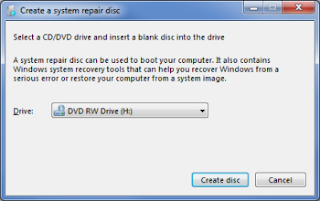
When it's done, label the disc, file it away, and hope you never need it. If you do, you can boot the disc to load a basic repair environment with diagnostic tools and System Restore.
The important thing to remember is that you can't do this after a problem has occurred; you need to create your repair disc ahead of time. So take 10 minutes and do it right now. At some point in the future, you may be awfully glad you did.
Part 2: Remove the Crapware
Now that you've created a system-repair disc for your new PC, let's get it running at peak performance. That means removing some, if not all, of the software that was preloaded by the system maker. Some call it shovelware; I call it crapware.
Why the derogatory moniker? Simple: The proprietary and/or third-party software that many vendors preload on their PCs is mostly junk. It consumes space on your hard drive, causes your system to boot slower than it should, and just generally gets in the way.
Yes, I'm looking at you, McAfee Internet Security 90-day trial. And Google Desktop. And Roxio everything. You're not bad products, but I didn't ask for you, and I don't want you unless I want you. Get it?
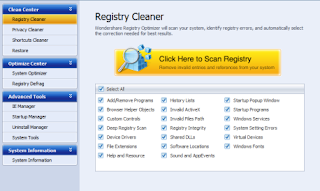
Uninstall crapware but worry that there may be shatters remaining here and there, say, in the registry? Well, this worry is not groundless. Some invalid keys do stay in the registry after installation. And in this case you can use
registry optimizer software to clean them.
Part 3: Keep It Secure
Now let's talk security. As any regular people know, computers and their users are vulnerable to all manner of threats, from hackers to spyware to viruses. That's why it's critical that you batten down your new machine's hatches right from the get-go.
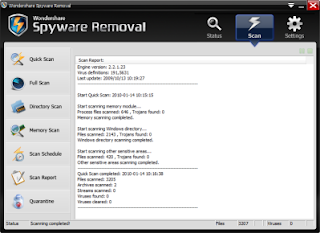
Psst! Guess what? Right out of the box, Windows 7 is already pretty darn secure. And there are many security utilities available online to choose, trojan, adware and
free spyware removal, etc.
Meanwhile, the latest versions of Firefox (3.5) and Internet Explorer (8) help keep you safe from pop-ups, phishing attempts, browser hijacking, and the like.
As for e-mail, both Gmail and Yahoo employ Norton anti-virus software at the server level (meaning there's nothing you have to install), along with anti-spam and anti-phishing tools. If you happen to use either one, well, you've got clean mail.
There are a couple tools of your own to consider adding to the mix. The first is a router, which has a built-in firewall that effectively renders your PC(s) invisible to the Internet at large--so no hackers will be able to break in.
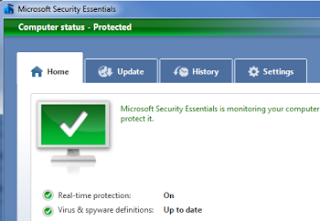
Second, for that little bit of extra protection, install Microsoft's widely acclaimed Security Essentials antivirus software.
Part 4: Create a Drive Image
Now that you've created a system-repair disc, dumped the junkware, and taken steps to secure your new PC, it's time to perform what I consider to be the ultimate hassle-prevention step: imaging (a.k.a. cloning or backup your hard drive).
See, right now your system is exactly the way you want it. You've got a fresh install of Windows (one that's newly free of crapware), the latest versions of your favorite apps (which I'm assuming you've already loaded), and all the security tools you need.
Wouldn't it be great to take a "snapshot" of this setup that you can restore in the event of catastrophe (or merely the inevitable slowing of Windows over time)? That's the idea behind creating a drive image: It can restore your PC to a like-new but custom-configured state.
You may never actually need the image file--but if you do, you'll be awfully glad you have it, for no one can guarantee that he/she will never come across a system crash or an impossible-to-remove virus.
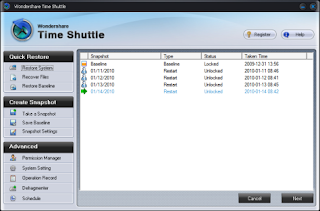
Traditionally, software you use to backup your drive just packs and compresses all your data in certain format of file which usually takes one third to half as large size as original data. That means if you want to image 10 GB data on your drive C, you will have to spare another 3 to 5 GB for the backup file. And procedures of backup and performing restore can be very complicated and time costing. Here I’m telling you that there is a tool called
Time Shuttle that it can image your drives without any space taken, and create images and perform restore both in seconds. Yes, don’t doubt it, and it just can do that!
After you finish the four steps, it’s not exaggerated to say your computer is hassle-free. Now go forth and enjoy that new PC! And let me know if you run into any other hassles that need solving.


